

Creating a document
Click + New Doc at the top of the Docs sidebar. You'll be asked to pick a starting template — choose Blank document to start from scratch, one of the built-in layouts, or one of your own saved templates (see the Docs: Templates article).
The editor
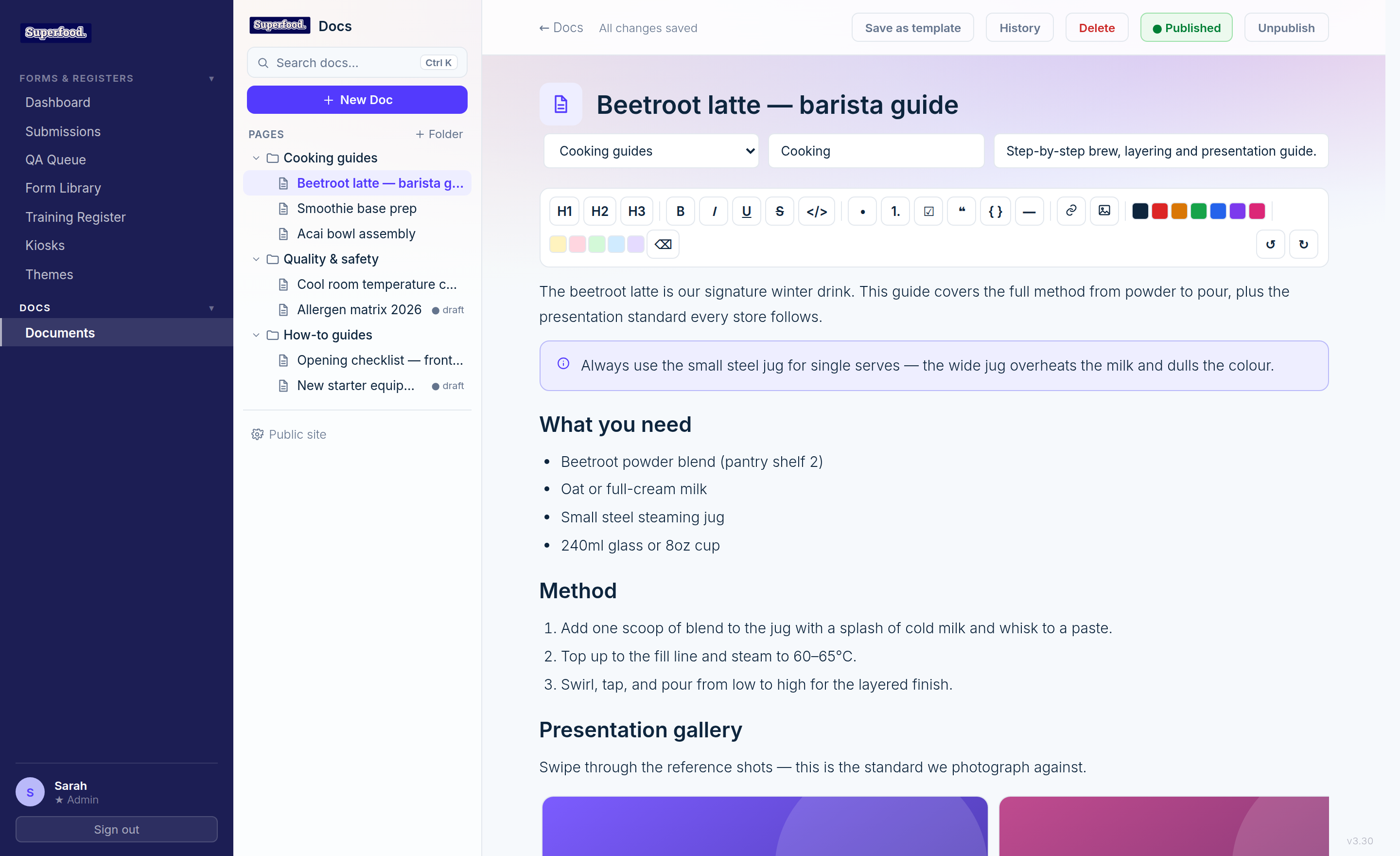
From top to bottom:
Title — click and type. This is what appears in the sidebar, library and search.
Folder — file the document in a folder from the dropdown (create folders with + Folder in the sidebar).
Category — a free-text label, e.g. Cooking or Quality. Shown on the library card and the public site.
Summary — a one-line description shown on the document's card in the library.
Toolbar — headings, bold/italic/underline, lists, checklists, quotes, code, dividers, links, images, text colours and highlights. Select text to use it, or use the slash menu (covered in Docs: Blocks and the Slash Menu).
Autosave — no save button
Everything you type is saved automatically a moment after you stop typing. The status label next to the back link tells you exactly where things stand: Saving…, All changes saved, or Save failed — retrying… if your connection drops (the editor keeps retrying and warns you before you close the tab with unsaved changes).
Drafts and publishing
New documents start as drafts — only authors can see them. Click Publish in the header to make a document visible to your whole team (and to your public docs site, if you use one). Published documents show a green ● Published pill; click Unpublish to pull one back to draft.
Version history
Click History in the editor header to see earlier versions of the document.
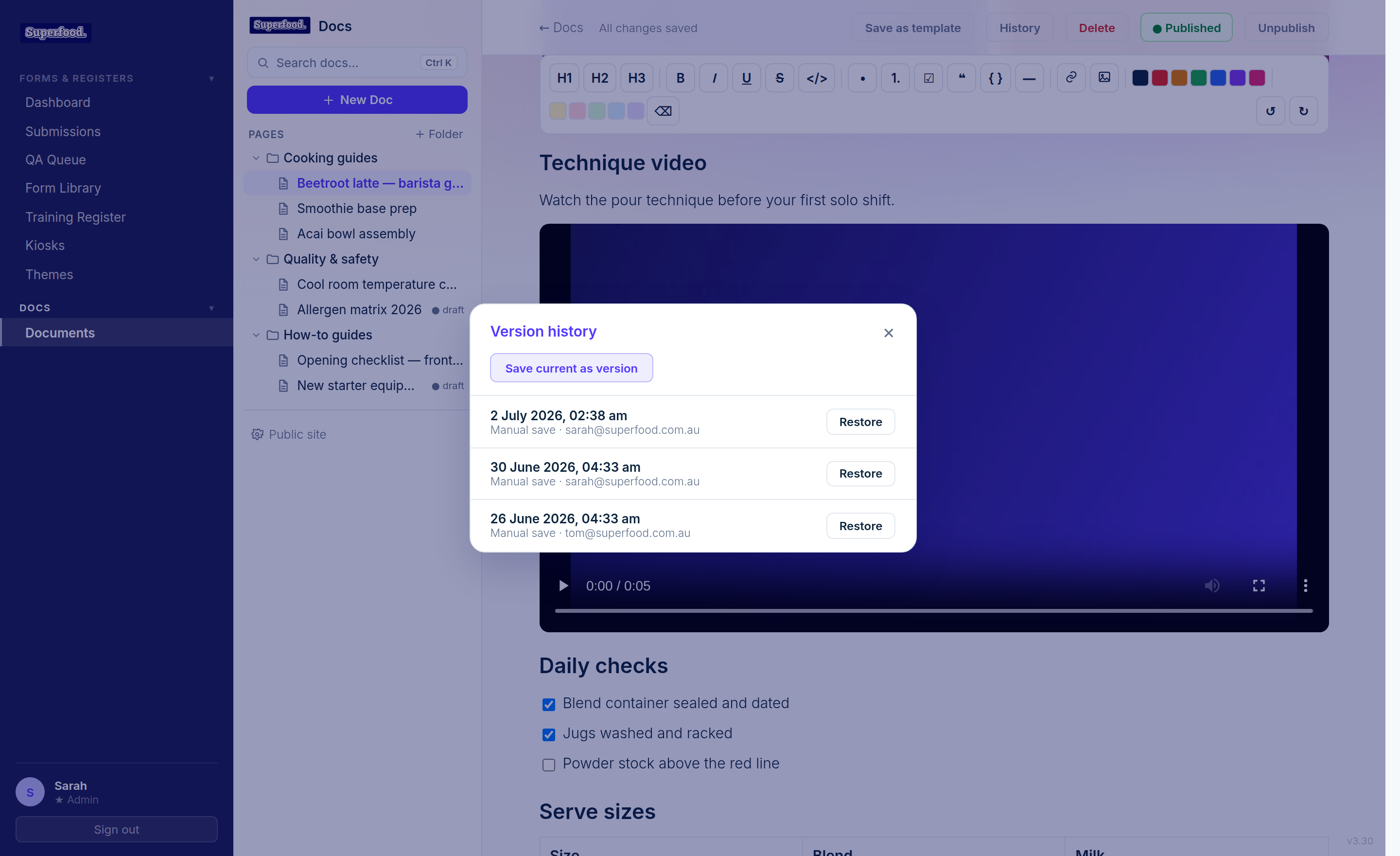
Each entry shows who saved it and when. Restoring a version first snapshots your current state, so you can always undo a restore.
Deleting
Click Delete in the editor header. You'll be asked to confirm — deletion can't be undone.