

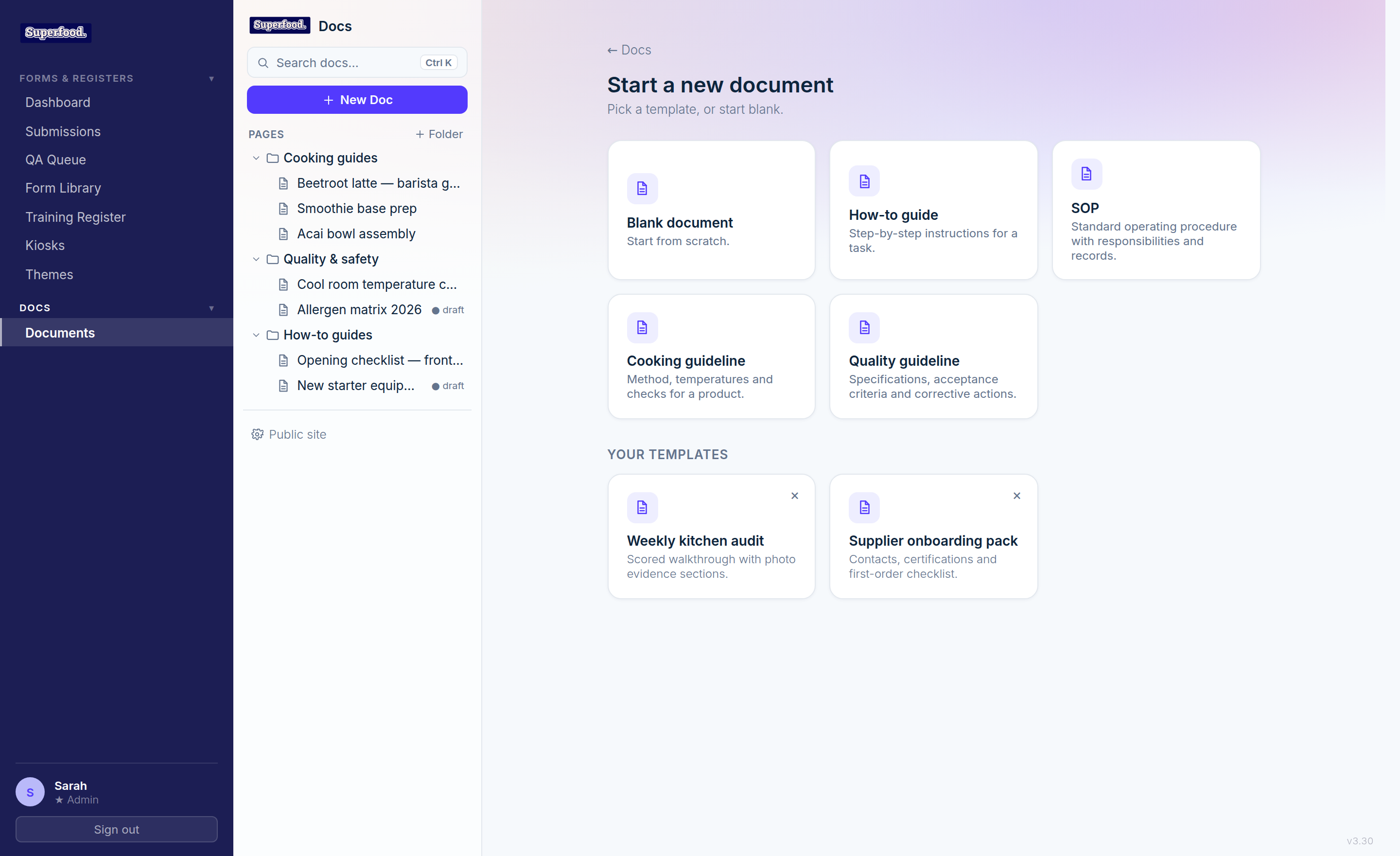
Every new document starts from the template picker, so your team never faces a blank page.
Built-in templates
Blank document — start from scratch.
How-to guide — step-by-step instructions for a task.
SOP — a standard operating procedure with responsibilities and records.
Cooking guideline — method, temperatures and checks for a product.
Quality guideline — specifications, acceptance criteria and corrective actions.
Saving your own templates
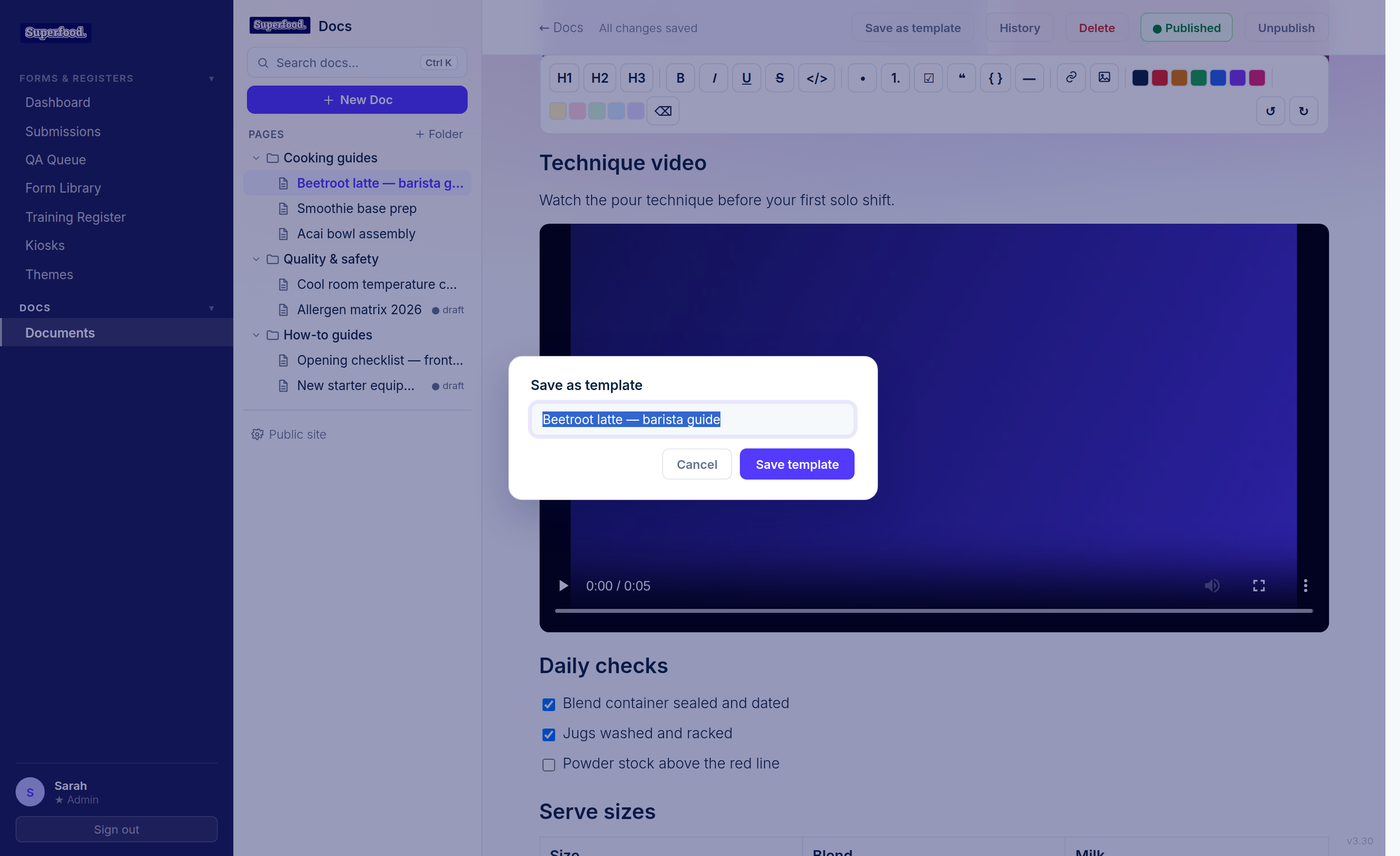
Any document can become a template. Open it in the editor and click Save as template in the header, give it a name, and it's saved for your whole company.
Two things worth knowing:
A template is a snapshot copy — editing the original document afterwards does not change the template.
Templates never show up in the sidebar, the library or your public docs site. They only appear in the template picker.
Using and managing your templates
Your saved templates appear under Your templates at the bottom of the new-document picker. Click one to start a new document pre-filled with its content, category and summary — then just rename it and adjust the details.
To delete a template, click the × in the corner of its card and confirm. Documents already created from it are not affected.