

Once a check-in point is set up, there are three ways to get visitors signing in. They all live in the Share the sign-in page card on the right of the designer.
1. The A4 QR poster
Click Download A4 QR poster for a print-ready PDF with your company logo, the check-in point name, and a large QR code. Print it and put it at the door. Visitors scan it with their phone camera and the sign-in page opens, no app needed.
Print at 100% (actual size) so the QR code stays crisp and scannable.
2. Kiosk mode on a reception tablet
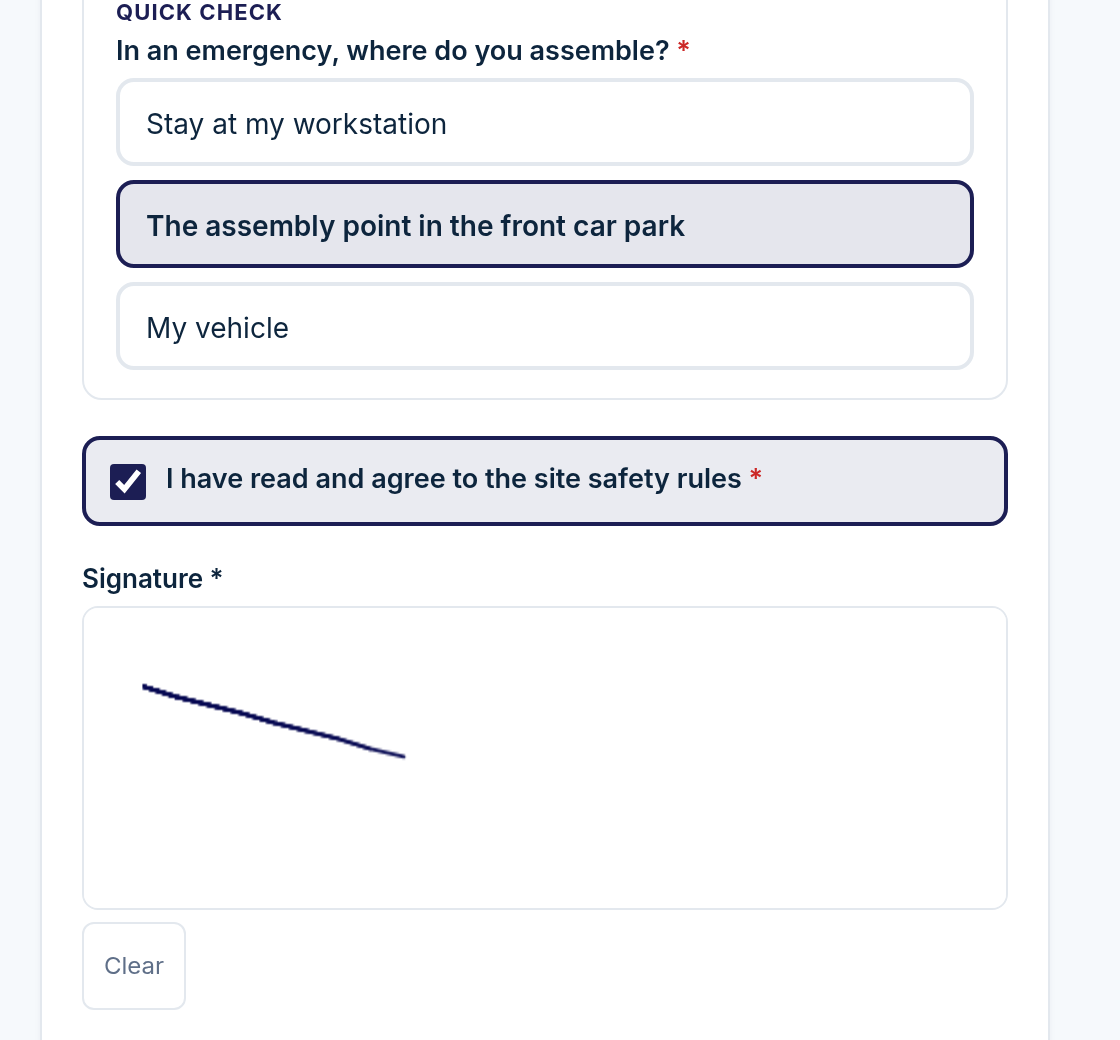
If you would rather have a tablet on the reception desk for visitors to sign in on, use Open kiosk mode. It is the same sign-in page in a dedicated mode built for a shared device:
After each visitor signs in, it shows a brief thank-you and then resets itself for the next person.
If someone starts filling it in and walks away, it clears automatically after a couple of minutes, so the next visitor never sees the last person's details.
Open the kiosk link on the tablet, add it to the home screen, and leave it running. Copy kiosk link gives you the address to open on the device.
3. Copy or email the link
Copy link puts the sign-in address on your clipboard to paste into an email, calendar invite, or intranet page.
Email the link sends it to up to ten people at once with an optional message, handy for contractors you know are coming, so they can sign in the moment they arrive.
Changing the web address
You can rename the web address at the bottom of the share card, but if you have already printed posters with the old QR code, they will stop working. We warn you when a change would do this.