

Documents are built from blocks. The fastest way to add one is the slash menu: type / on any empty line and pick a block.
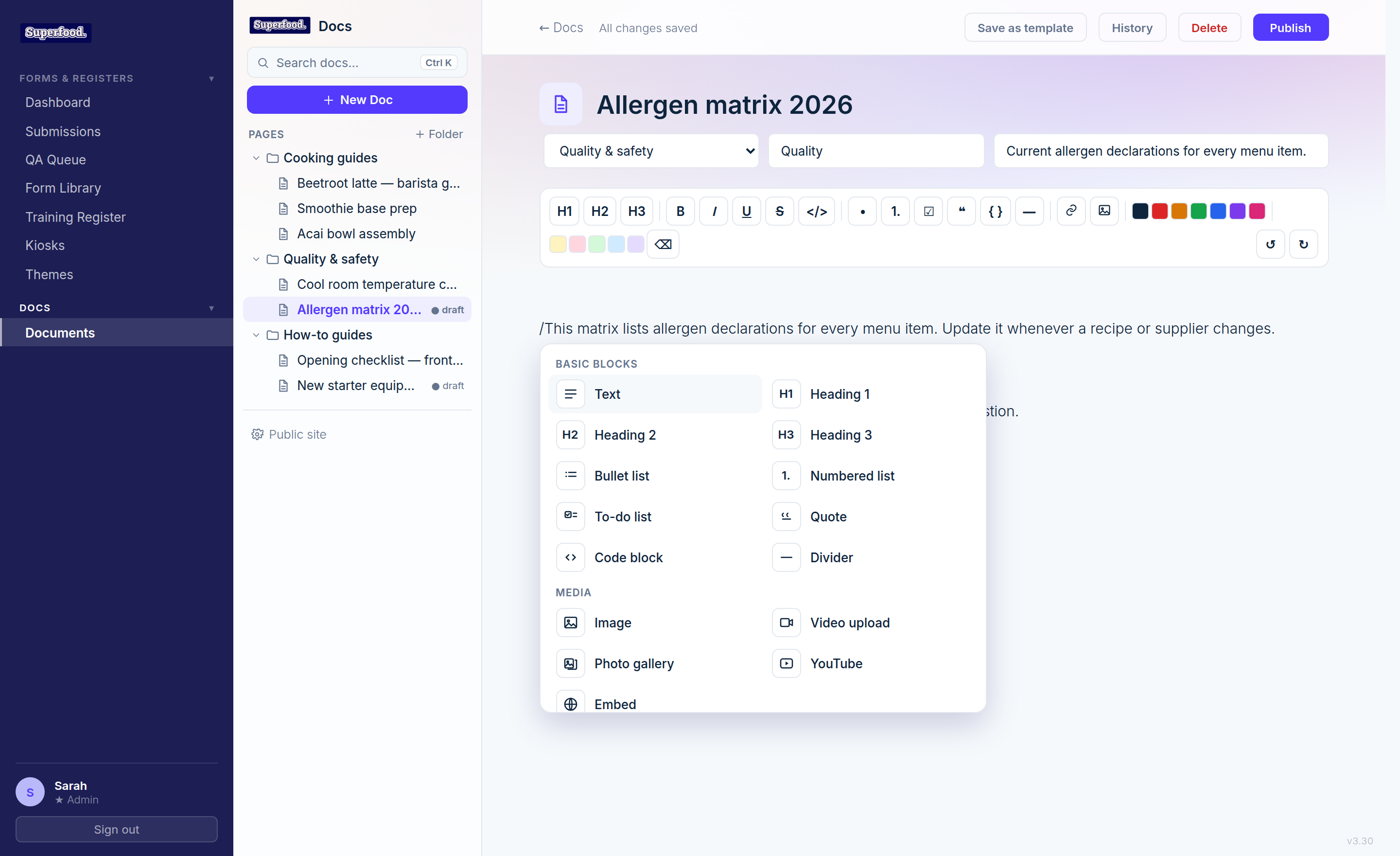
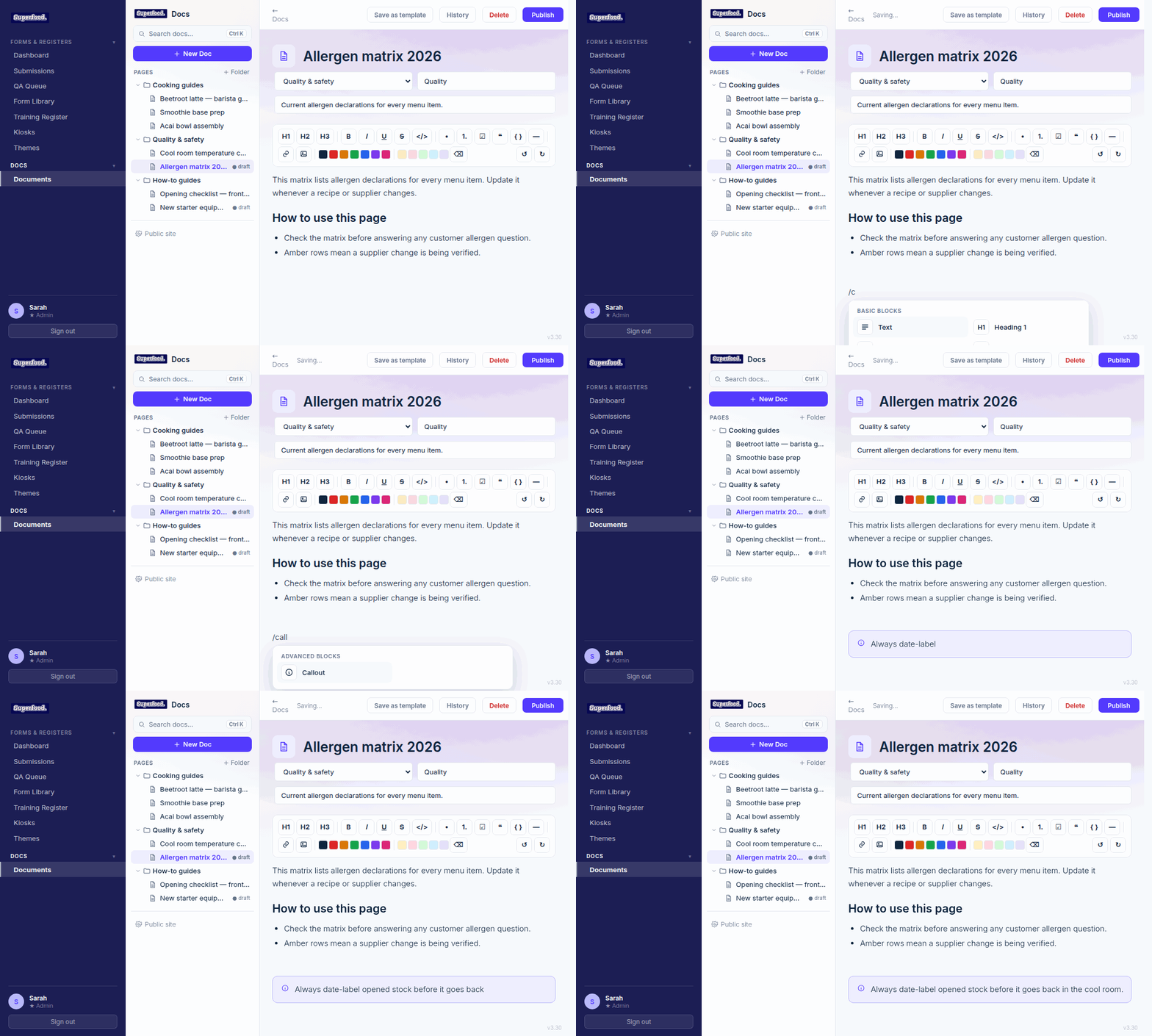
Keep typing after the / to filter — for example /table or /gal — then press Enter to insert. Here's the whole flow:
Block types
Basic blocks — Text, Heading 1–3, Bullet list, Numbered list, To-do list (tickable checkboxes), Quote, Code block, Divider.
Media — Image, Video upload, Photo gallery, YouTube, Embed (Google Drive, Slides, or any embeddable link). See Docs: Photos, Videos and Galleries.
Advanced — Callout (a highlighted note box, great for warnings and tips), Table, and Two columns for side-by-side layouts.
Formatting — text colours and highlight colours.
Formatting selected text
Select any text and a floating toolbar appears with bold, italic, underline, strikethrough, link and colour options. The fixed toolbar at the top of the editor has the same tools plus undo and redo.
Rearranging blocks
Media blocks (images, videos, galleries, embeds) can be dragged to reorder. For everything else, standard cut and paste works, and Ctrl Z / ⌘Z undoes any change.